Velocity FSM
Roadmap path illustration
Internal

Implementation Playbook

The Technical VA onboarding framework and trade-specific implementation guides for every supported industry. Internal use only.

1
Discovery & Tenant Setup
2
Configuration & Catalog
3
Roles & Team Setup
4
Operational Workflow Walkthrough
5
QuickBooks Online Connection & Validation
6
Training
7
Launch Readiness
8
Handoff & Support
1

Shared Onboarding Framework

Every implementation follows these eight phases. The industry guide below layers trade-specific detail on top.

Kick off the engagement, confirm the signed MSA/Order Form, collect the tenant's trade and accounting details, and create the tenant record.

Prerequisites
  • Signed MSA and Order Form on file
  • Welcome email sent to the primary admin
Completion criteria
  • Tenant record created with company name, industry, and accounting system
  • Primary admin invited and able to log in
  • Legal consent (Terms + Privacy) recorded
VA Step-by-Step
1
Confirm the signed MSA and Order Form are on file
Expected: You can reference the plan tier, billing term, selected add-ons, and additional scope items during setup.
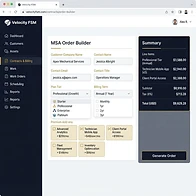
velocityfsm.com/msa-order-builder
MSA Order Builder
MSA Order Builder screenshot
Key controls
1
Customer company name and contact email— top-left form card
2
Plan tier dropdown (Starter through Platinum)— plan selector
3
Billing term (monthly / 1yr / 2yr / 3yr)— term selector
4
Premium add-on checkboxes— add-ons grid
5
Generate Order button — creates the MSA record— bottom-right button
2
Send the welcome email to the primary admin from your own mail client
Expected: The admin receives a kickoff message with the call date and prep checklist. This email is sent manually — it does not send a login invitation.
3
Invite the primary admin via Tenants → Manage Members (separate from the welcome email)
Expected: The admin receives a separate system invitation email with a login link and can access the app. The welcome email above does not include a login link.
1
Open Tenants page
Find the tenant row
2
Click Manage Members
Opens the member list
3
Enter admin email + role
Role = admin
4
Send invite
Admin gets a system email with the login link
4
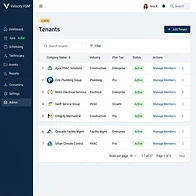
Create the tenant record via the Tenants page
Expected: A Company record exists with company name, industry type, and accounting system set.
velocityfsm.com/tenants
Tenants Page
Tenants Page screenshot
Key controls
1
Add Tenant button— top-right
2
Company name field— form row 1
3
Industry type dropdown (HVAC, Landscaping, etc.)— form row 2
4
Accounting system (QuickBooks Online or None)— form row 3
2

Industry Implementation Guides

Select an industry to view its trade-specific implementation guide — service catalog, estimating, job lifecycle, scheduling, QBO setup, training, and troubleshooting.

Overview

HVAC companies service, repair, and install heating, ventilation, and air conditioning systems. Work ranges from seasonal tune-ups and refrigerant recharges to full system installs. The service-capture field records the unit model and tonnage. Jobs vary from short service calls to multi-hour installs.

Terminology
Tonnage:
The cooling capacity of an AC unit; used to size replacement systems and refrigerant charges.
Tune-Up:
A seasonal maintenance visit — inspect, clean, and adjust the system.
Refrigerant Recharge:
Adding refrigerant; charged per pound.
Service Catalog Setup

Service calls and tune-ups are per-each. Refrigerant is per-pound. System installs are per-each (flat).

Flat diagnostic/tune-up fees, per-pound refrigerant, and flat install prices. Duct cleaning is a premium add-on.

Sample SKUs
HVAC-100 AC Tune-Up — $129HVAC-120 Refrigerant Recharge (lb) — $85HVAC-170 System Install — $1,200
Tag every QBO Item with the HVAC- prefix.
Estimating & Measurement

No area scan. Estimates are built from the service type, unit tonnage, and refrigerant quantity.

Scan compatible: No — manual entry only.

Key factors
Unit Model & Tonnage (service-capture field)Refrigerant pounds

Tip: For system replacements, use the ballpark estimate to quote the install price, then confirm onsite with the exact model.

Job Lifecycle & Workflow

Service call → Diagnosis → Repair quote → Customer approval → Repair or install → Payment → QBO sync.

Typical duration: Tune-ups 1 hour; repairs 1–3 hours; installs 4–8 hours.

Complexity: Standard for tune-ups. System installs may be Complex (Senior Technician). Multi-unit commercial installs may need a crew.

Scheduling & Crew

Crew: Single technician for service calls. Installs may need 2-person crews (Multi-Tech).

Routing: Seasonal demand spikes — route optimization helps manage high-volume tune-up seasons.

QuickBooks Online Setup & Validation
  1. Connect QuickBooks Online from Settings.
  2. Tag service, repair, and install Items with the HVAC- prefix.
  3. Sync Products & Services.
  4. Validate a tune-up job and an install job both sync correctly with the right income accounts.

Validation: Confirm refrigerant (per-lb) items map to a materials/parts income account, and labor items map to a service income account.

Training Checklist
  • Admin: catalog with per-pound refrigerant pricing, seasonal tune-up SKUs.
  • Dispatcher: scheduling by skill level (senior for installs), seasonal volume management.
  • Technician: recording tonnage and refrigerant quantity, collecting payment on service calls.
  • Billing: QBO sync, handling warranty vs billable repairs.
FAQs
How do I bill refrigerant by the pound?
Create a SKU with unit 'each' and price per pound; the technician enters the quantity (pounds) on the job line item.
Can I schedule seasonal maintenance contracts?
Yes — create a Service Program with seasonal visits (spring/fall tune-ups) and enroll customers.
Troubleshooting
Install job not routing to a senior tech
Set the job complexity tier to 'Complex' so the auto-assign engine routes it to a Senior Technician.
Refrigerant line item total is wrong
Check the technician entered the correct quantity (pounds) and the SKU unit price is per-pound, not flat.
3

Product Guides

Step-by-step setup, everyday-use, and verification workflows for the Estimator, AI Receptionist, and Field Service CRM.


Product guide illustration
Plan availability
Included natively on Growth and higher. Available as a premium add-on on Plus. Not available on Starter.
Setup
1
Confirm the Estimator add-on is enabled (Plus tenants) or the tier includes it (Growth+)
Expected: The Estimator nav item is visible to admin and dispatcher roles.
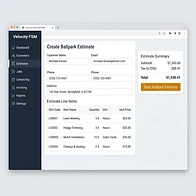
velocityfsm.com/estimator
Estimator Entry Point
Estimator Entry Point screenshot
Key controls
1
Customer name + address fields— top form card
2
Service Catalog drawer (search by SKU code or name)— add line item button
3
Line items list with qty, unit, unit_price— line items table
4
Subtotal, tax, total summary— right-side summary card
2
Ensure the SKU catalog has correct units and tax classification
Expected: Area-based SKUs use 'sq ft' or 'cu yd'; linear SKUs use 'linear ft'; all field-service SKUs are 'taxable_ct'.
3
For Google Solar insights, save the tenant's Google Maps/Solar API key in Settings
Expected: The Remote Desk Estimator shows live building data instead of simulated data.
Everyday Use
1
Create a ballpark estimate for a phone or web lead
Expected: The customer gets a link to approve the ballpark, which creates a Site Assessment job.
1
Open Estimator
/estimator from the sidebar
2
Enter customer + address
Name, email, phone, full address
3
Add line items from catalog
Search by code or name; set qty
4
Review subtotal + tax + total
Tax auto-calculated at 6.35% (CT)
5
Send ballpark estimate
Emails the customer a secure approval link
6
Customer approves
Job created as 'Ballpark Approved' → Site Assessment
2
Field tech validates scope onsite (Site Assessment)
Expected: The tech scans or enters real measurements, adjusts line items, and sends a locked revised estimate.
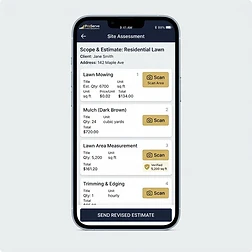
velocityfsm.comTechnician mobile app — Site Assessment job
Site Assessment Workbench
Site Assessment Workbench screenshot
Key controls
1
Line items from the ballpark (editable)— line items list
2
Multi-Section Area Scanner (per-row LiDAR / manual)— scan button per row
3
Quantity override from scan results— qty field auto-updates
4
Send Revised Estimate button (locks the estimate)— bottom action bar
3
Customer signs the revised estimate as a contract
Expected: The contract is signed, deposit collected, and the job is ready to schedule.
Verification
1
Confirm a test ballpark estimate reaches the customer email
Expected: The customer receives the secure link and can approve it.
2
Confirm the Site Assessment scanner produces correct quantities
Expected: Scanned area / 108 = cubic yards (mulch); area / 100 = per-100-sq-ft qty; linear feet entered directly.
3
Confirm the revised estimate locks and the contract signing flow works
Expected: The customer signs, the deposit is collected (or flagged pending), and the job appears on the dispatch board.
4

Accounting Integration Status

Only QuickBooks Online is live today. All other accounting systems are Coming Soon — do not promise them to tenants.

QuickBooks OnlineAvailable
XeroComing Soon
FreshBooksComing Soon
NetSuiteComing Soon
OdooComing Soon
Sage IntacctComing Soon
Zoho BooksComing Soon